Testing and Deploying an Extension
This guide covers the full lifecycle of an extension — from running it locally against real board data, to deploying a hosted build, to publishing and installing the app that contains it. If you haven't created an app yet, start with Getting Started and the extension overview.
Lifecycle at a glance
scaffold extension] --> B[Test with the
Extension Launcher] B --> C[Declare in
app.yml] C --> D[Publish
the app] D --> E[Deploy the
extension package] E --> F[Set iframeUrl,
re-publish] F --> G[Install / upgrade
the app]
An extension package (a deployed build of your front-end code) and an app version (a published version of the app that references it via iframeUrl) are independent. You can redeploy a package without publishing the app, and publish the app without redeploying the package. You only publish a new app version when you want to change which iframeUrl users receive.
The app must exist before you can deploy an extension
contrail app extension deploy requires the app to already exist in your org — otherwise it fails with App … not found. Extensions can only be deployed for existing apps. That's why the first time through, the order is create → publish → deploy → set iframeUrl → publish again.
Install and authenticate the CLI
Every deploy, publish, version, install, and upgrade step below uses the Contrail CLI (@contrail/cli). Set it up once:
npm install -g @contrail/cli
contrail --version        # verify the install
contrail app --help       # list the app/extension commands
The binary is available as both contrail and contrail-cli.
Authenticating. There is no separate login command. The first time you run a command that talks to the platform (e.g. contrail app publish), the CLI prompts for your email, password, and — if no org is configured yet — your org slug, then caches your tokens under ~/.vibeiq/configs/ until the session expires.
Selecting the org. The CLI works against one org at a time, stored in a named config profile under ~/.vibeiq/configs/. Create a profile for your org and activate it:
contrail config create --name="my-org"   # create a named profile
contrail config use                        # pick a profile (lists the ones you have)
contrail config use with no argument lists your profiles to choose from; pass a name to switch directly (contrail config use "my-org"). You do this once per org. When you first run a platform command, the login flow fills the active profile with your org and credentials.
Authenticating in CI/CD
For non-interactive pipelines, provide an app API key (from contrail app getApiKey) via an environment variable:
export CONTRAIL_CLI_API_KEY=<your-app-api-key>
contrail app extension deploy -i data-exporter
You can also pre-seed credentials with CONTRAIL_CLI_EMAIL and CONTRAIL_CLI_PASSWORD.
Run commands from the app root
contrail app … and contrail app extension … commands read your app.yml, so run them from the app's root directory (the folder that contains app.yml). They operate on the current app only.
1. Create the app and scaffold the extension
An extension is a front-end app served from a single public URL and loaded in an iframe. Each extension lives in its own folder under an extensions/ directory inside the app.
First create the app — this registers it in your org, which is required before you can deploy an extension later:
contrail app create # prompts for app identifier, name, publisher, description, nodeRuntime
Then scaffold the extension's front-end. Any framework works, but VibeIQ managed hosting currently supports Angular, so scaffold it with the Angular CLI from an extensions/ folder. Name the app the same as the extension identifier you'll declare in app.yml — the folder name and the identifier must match.
mkdir extensions && cd extensions
ng new data-exporter      # the app/folder name == the extension identifier
Scaffold with Claude
If you use an AI coding assistant such as Claude, you can have it generate a minimal, working skeleton — just enough to confirm the extension builds, loads in the launcher, and completes the SDK handshake — then build it out from there. Paste a starter prompt like the one below, filling in the bracketed choices:
Scaffold a minimal VibeIQ extension as an Angular app so I can rename and
customize it later.

Identity & manifest:
- Extension identifier: [data-exporter]  (kebab-case)
- Put the extension code under extensions/<identifier>/ so the folder name
  matches the identifier exactly.
- Add an app.yml `extensions` entry with:
    extensionType: [DOCUMENT_AUTOMATION | CONTEXTUAL_ACTION | ADMIN_UTILITY]
    userApps: [BOARDS]            # any of BOARDS, PLAN, SHOWCASE, ADMIN_CONSOLE
    display:
      type: [modal | side-menu]
      dimensions: { width: 800px, height: 600px, maxWidth: 95vw }
    iframeUrl: <placeholder>      # filled in after deploy

Project / build:
- Standard Angular app (standalone components are fine).
- A `start` script that runs `ng serve --port 4200` (a fixed port I'll type
  into the Extension Launcher). `npm install` && `npm run start` must work
  from a clean checkout.
- Install `@contrail/extensions-sdk` and its peer `@contrail/sdk` (both public
  on npm — no auth token needed).
- Do NOT set X-Frame-Options or a restrictive CSP — the app loads in an iframe.
- Styling: [Tailwind CSS | plain CSS].  Default to Tailwind unless I say plain.

Behavior (important for visibility):
- Render a visible "Hello World" message IMMEDIATELY on load. Do NOT gate the
  UI behind the SDK handshake.
- In ngOnInit, call `AppExtension.registerAppExtension()` from
  `@contrail/extensions-sdk` inside a try/catch as a background step. It only
  resolves once the host sends context, so never `await` it before rendering.
  When it resolves, log `getAppContext()` and flip a status line to
  "Connected to host"; if it throws, leave "Hello World" on screen.

Keep it as small as possible — this is a smoke test I'll expand later.
This produces a runnable stub with roughly this shape:
my-app/
├── app.yml                     # extensions: [ { identifier: data-exporter, ... } ]
└── extensions/
    └── data-exporter/          # folder name == the extension identifier
        ├── package.json
        ├── angular.json
        └── src/
            ├── main.ts
            ├── styles.css
            └── app/            # root component + your UI
Start it with npm run start, then enter http://localhost:4200 in the Extension Launcher (step 2). You should see "Hello World" immediately, with the status line flipping to "Connected to host" once the handshake completes. Whatever the assistant generates, double-check the things that most often need correcting: the UI renders without waiting on the handshake, the app.yml field names match this guide (extensionType, userApps, display), and the extension folder name equals the identifier.
Connect to the host
Whether you scaffold by hand or with Claude, the extension connects to the host on startup: import @contrail/extensions-sdk and acknowledge the connection.
import { AppExtension } from '@contrail/extensions-sdk';

@Component({
  selector: 'app-root',
  templateUrl: './app.component.html',
})
export class AppComponent implements OnInit {
  async ngOnInit() {
    // Acknowledge the host connection. Until this resolves, the host
    // will not send the app context or accept commands.
    await AppExtension.registerAppExtension();
    // your code — e.g. read context, render UI, call BoardsApp / PlanApp / ShowcaseApp
  }
}
After the handshake resolves you can call getAppContext() and use BoardsApp, PlanApp, ShowcaseApp, EntitiesClient, and TypesClient. See Reading Context and Performing Document Actions.
Render before you await the handshake
registerAppExtension() only resolves once the host sends context. Render your UI first and run the handshake in the background — don't await it before showing anything, or the iframe stays blank. With the launcher open, the SDK logs [AppExtension] Awaiting connection to host app... and then Connected to host app. once it completes.
Zoneless Angular: add a polyfill
If you chose Zoneless when running ng new, the app needs a small polyfill and a builder switch to load in the iframe:
-
Create
src/polyfills.ts:(window as any).global = window; (window as any).process = { env: { DEBUG: undefined } }; -
Install the browser builder (run
npm updatefirst if needed):npm i -D @angular-devkit/build-angular. - In
angular.jsonunderprojects → <name> → architect → build, set the builder to@angular-devkit/build-angular:browser, and inoptionsadd"polyfills": ["src/polyfills.ts"],"baseHref": "./","main": "src/main.ts"(renamebrowsertomainif present), and"index": "src/index.html". - In
tsconfig.json, add"files": ["src/main.ts", "src/polyfills.ts"].
2. Test locally with the Extension Launcher
You don't need to deploy anything to test. Run your extension on a local dev server, then load it into a live board with the Extension Launcher in Developer Mode:
- Open the boards app and open a board.
- Activate Developer Mode:
Shift + Cmd + D(Mac) orShift + Ctrl + D(Windows). This reveals the Extension Launcher button in the advanced section of the left-hand panel. - Click Extension Launcher, enter any URL — including a
localhostendpoint such ashttp://localhost:4200— and launch.
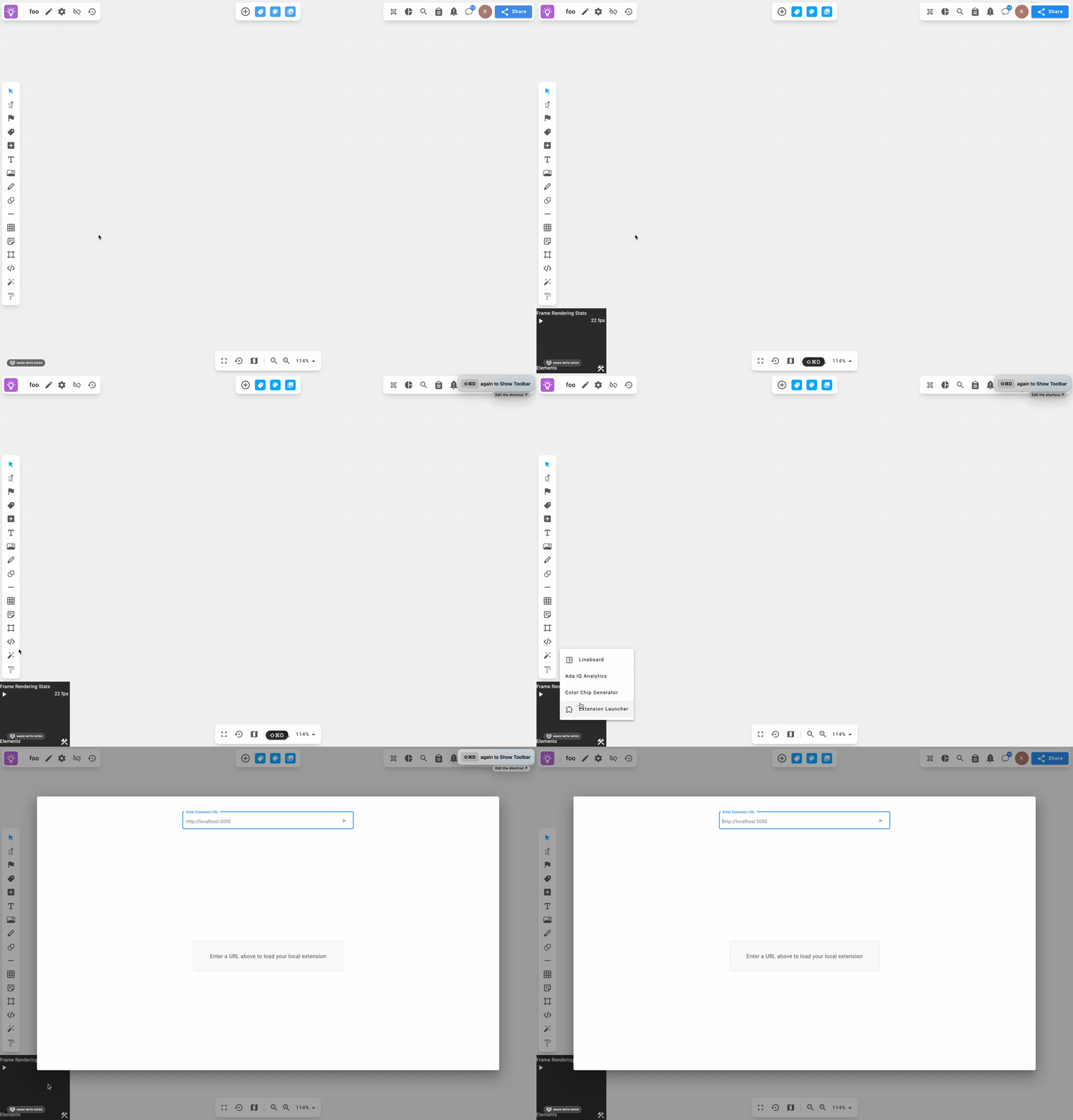
The locally-served extension has full access to the underlying board's data and elements, exactly as it would once deployed. This is the fastest iteration loop: edit code, reload the launcher, repeat.
Test your display mode after install
The Extension Launcher always renders in a standard modal and ignores your display config. Verify modal vs side-menu behavior once the extension is installed.
3. Configure the extension in app.yml
Declare the extension in your app manifest. The fields most relevant here are iframeUrl (where the build is served), userApps (where it appears), extensionType (what it can do), and display (how it's presented).
extensions:
  - identifier: data-exporter
    name: Data Exporter
    extensionType: DOCUMENT_AUTOMATION
    userApps:
      - BOARDS
    display:
      type: modal
      dimensions:
        width: 800px
        height: 600px
        maxWidth: 95vw
    iframeUrl: http://example.com/   # replaced with the deployed package URL in step 6
To dock the extension as a side panel instead, set display.type: side-menu:
extensions:
  - identifier: sales-history
    name: Sales History
    extensionType: CONTEXTUAL_ACTION
    userApps:
      - BOARDS
      - PLAN
    display:
      type: side-menu
      dimensions:
        width: 340px
        height: calc(100vh - 82px)
        maxWidth: 650px
      position:
        right: 0.625rem
        bottom: 0.625rem
    iframeUrl: http://example.com/
Any side-menu field you omit falls back to a default (width: 340px, height: calc(100vh - 82px), maxWidth: 650px, right: 0.625rem, bottom: 0.625rem). See the full display reference.
4. Publish the app (before you deploy)
You can't deploy an extension package until the app exists in your org. You created the app in step 1; now publish an initial version from the app's root directory:
contrail app publish # publishes the first version
See Publishing the app.
5. Deploy a hosted extension package
You have two hosting options.
Self-hosted. Build your front-end (e.g. npm run build) and deploy the output to any HTTPS host — Netlify, Vercel, GitHub Pages, etc. You'll set iframeUrl to that URL in step 6.
VibeIQ managed hosting. Deploy a package with the CLI. Two things must be true:
- Run it from the app root — the directory that contains
app.yml. The CLI readsapp.ymland looks for the extension's code atextensions/<identifier>/. - Pass the extension's
identifierwith the required-i(--identifier) flag. This is theidentifierfrom theextensionslist inapp.yml(not itsname), and it must match the folder name underextensions/.
So for an extension declared as identifier: data-exporter, the code lives in extensions/data-exporter/ and you deploy it with:
contrail app extension deploy -i data-exporter
# ...build logs...
# SUCCESS Extension package is ready.
# SUCCESS Extension deployment URL: https://d2ja3jpe4d2noo.cloudfront.net/packages/8REZp3p0TsWJxPVM/index.html
The expected project layout:
my-app/
├── app.yml                      # declares: extensions: [ { identifier: data-exporter, ... } ]
└── extensions/
    └── data-exporter/           # folder name == the identifier you pass to -i
        ├── package.json
        └── ...                  # your extension's source
When you run the deploy command, the CLI finds the extension in app.yml, installs its production dependencies, builds it, uploads the build to VibeIQ's servers, and prints the hosted URL.
Managed hosting notes
Managed deployments are currently Angular-only, and all managed extensions are publicly accessible via their URL — keep that in mind when building functionality. For non-Angular extensions, self-host (above) or reach out to your VibeIQ CSM.
Listing deployments. List previous deployments for the current app (latest 20 by default, or all with --all):
contrail app extension deployment list --all

┌─────────┬────────────────────────────┬────────────────────┬────────────┬──────────────────────────────────────────────────────────────────────────────┐
│ (index) │ Created At                 │ Package ID         │ Status     │ URL                                                                          │
├─────────┼────────────────────────────┼────────────────────┼────────────┼──────────────────────────────────────────────────────────────────────────────┤
│ 0       │ '2025-06-10T21:35:19.111Z' │ '7y9wS9kLRX0R8nnG' │ 'DEPLOYED' │ 'https://d1cjl68pu6szkr.cloudfront.net/packages/7y9wS9kLRX0R8nnG/index.html' │
│ 1       │ '2025-06-10T20:16:17.373Z' │ 'vZk0u_Tdyky0hFXk' │ 'DEPLOYED' │ 'https://d1cjl68pu6szkr.cloudfront.net/packages/vZk0u_Tdyky0hFXk/index.html' │
│ 2       │ '2025-06-10T20:15:27.595Z' │ 'XbwjGketIXW2I9Oh' │ '-'        │ '-'                                                                          │
└─────────┴────────────────────────────┴────────────────────┴────────────┴──────────────────────────────────────────────────────────────────────────────┘
A package that failed to deploy has no URL. The command lists deployments for the current app only — but if your app exposes multiple extensions, it lists deployments for all of them.
6. Point iframeUrl at the deployment and re-publish
Copy the URL printed by the deploy command (or your self-hosted URL) into the extension's iframeUrl in app.yml:
extensions:
  - identifier: data-exporter
    name: Data Exporter
    iframeUrl: https://d2ja3jpe4d2noo.cloudfront.net/packages/8REZp3p0TsWJxPVM/index.html
    # ...extensionType, userApps, display...
Changing iframeUrl (or any app.yml field) only reaches users after you publish a new app version:
contrail app version patch   # bump the version (patch | minor | major)
contrail app publish
The publish output includes an EXTENSION step that deploys your extension definitions. Make sure it doesn't report No extensions found...skipping, which would mean your extensions block is missing or malformed.
Publish and upgrade in one step
Add -u / --upgrade to also upgrade the installed version in your current org, so you don't need a separate contrail app upgrade. Use --dryRun to preview a publish without applying it.
contrail app publish --upgrade
7. Install or upgrade the app
Finally, install the app (first time) or upgrade it (subsequent versions) in the target org, via the marketplace UI or the CLI:
contrail app install --appIdentifier="@your-org/your-app"
# or, for a new version of an already-installed app:
contrail app upgrade --appIdentifier="@your-org/your-app" --latest
Once installed, the extension appears in the apps listed in userApps — in the advanced/extensions menu for DOCUMENT_AUTOMATION, in the right-click menu for CONTEXTUAL_ACTION, or as a Utilities tab for ADMIN_UTILITY. See Installing the app.
Iteration loop
For day-to-day development you rarely repeat every step:
- Changing extension code only: redeploy the package (
contrail app extension deploy -i <identifier>). IfiframeUrlalready points at that managed package URL or your own stable host, no app publish is needed. - Changing how or where the extension appears (
display,userApps,extensionType,iframeUrl): editapp.yml, thencontrail app version patchandcontrail app publish(add--upgradeto push it to your org in one step). - Trying something quickly: skip deployment entirely and use the Extension Launcher against
localhost(step 2).