Creating Workflows
The suggested method for creating workflows is to create them in the app.yml of the App, whose actions will be used in the workflow. Then they will be associated to the version of the App when published via the CLI; and can be installed via the App Marketplace UI. The other way to create a workflow through the Event Workflow UI. To do that, navigate to the Event Workflows section in the Admin App, and click on the “+ New” button. Enter a name for your workflow.
Defining Workflows in app.yml
Workflows can be defined directly in your app's app.yml file. This approach enables version-controlled, repeatable workflow deployment. When you publish your app, workflows defined in app.yml are saved as Workflow Template Definitions. Other orgs can then install those pre-configured workflows alongside your app. See Workflow Template Definitions for more on that flow.
Workflow Structure
Declare each workflow under the top-level workflows key, using a short key that serves as the local identifier:
workflows:
  syncToProduction:
    identifier: 'syncToProduction'
    name: 'Sync Items to Production'
    triggerKey: item|update
    isActive: true
    public: true
    parallelWorkerCount: 5
    workflowDefinition:
      paths:
        - conditional: 'true'
          actionDefinitionConfigs:
            - action: syncItem
              name: Sync Item
Workflow Properties
| Property | Type | Required | Description |
|---|---|---|---|
identifier |
string | Yes | Unique identifier used to match this workflow on re-deploy. Must match the workflow's map key. |
name |
string | Yes | Display name shown in the Admin Console. |
triggerKey |
string | Yes | The event key that fires this workflow (e.g. item|update, assortment|publish). |
isActive |
boolean | Yes | Whether the workflow is active when deployed. |
public |
boolean | No | Makes the workflow visible for orgs that install this app. |
parallelWorkerCount |
number | No | Maximum concurrent jobs (range 1–30). Defaults to 5. |
messageGroupId |
string | No | Fixed key used to group parallel jobs into one queue. Cannot be combined with dynamicMessageGroupId. |
messageGroup |
string | No | Static prefix used together with dynamicMessageGroupId to form a queue name. |
dynamicMessageGroupId |
string | No | Template string for dynamic queue assignment based on event data (e.g. 'family-queue-{newData.itemFamilyId}'). |
crons |
list | No | List of CRON schedule declarations (name and cron fields). See Scheduled Trigger. |
Workflow Definition
The workflowDefinition declares what runs when the workflow fires. It contains a list of paths. Each path has a conditional (a JavaScript expression evaluated against the event) and a list of actionDefinitionConfigs. Only the first path whose conditional evaluates to true is executed; the remaining paths are skipped.
workflowDefinition:
  paths:
    - conditional: "{newData.status} === 'active'"
      actionDefinitionConfigs:
        - action: notifySlack
          name: Notify Slack (Active)
    - conditional: 'true'           # catch-all fallback
      actionDefinitionConfigs:
        - action: logItem
          name: Log Item
Action Definition Config Properties
| Property | Type | Required | Description |
|---|---|---|---|
action |
string | Yes | Key matching an entry in the actions section of app.yml. |
name |
string | Yes | Display label for this step in the Admin Console. |
config |
object | No | Per-workflow values for the action's declared actionConfiguration properties. |
Per-Workflow Action Configuration
An action can expose configurable properties via its actionConfiguration declaration. When you add that action to a workflow in app.yml, use the config key to set concrete values for those properties. Because config lives on the workflow step (not on the action itself), different workflows can supply different values to the same action.
Consider an action that declares a configurable endpoint property:
actions:
  syncItem:
    name: 'Sync Item'
    description: 'Syncs an item to an external system.'
    async: true
    actionConfiguration:
      endpoint:
        label: 'Target API Endpoint'
        propertyType: 'string'
Two workflows can now invoke syncItem with different endpoints:
workflows:
  syncToProduction:
    identifier: 'syncToProduction'
    name: 'Sync to Production'
    triggerKey: item|update
    isActive: true
    workflowDefinition:
      paths:
        - conditional: 'true'
          actionDefinitionConfigs:
            - action: syncItem
              name: Sync Item
              config:
                endpoint: 'https://prod.example.com/items'

  syncToStaging:
    identifier: 'syncToStaging'
    name: 'Sync to Staging'
    triggerKey: item|create
    isActive: true
    workflowDefinition:
      paths:
        - conditional: 'true'
          actionDefinitionConfigs:
            - action: syncItem
              name: Sync Item
              config:
                endpoint: 'https://staging.example.com/items'
The config values are merged with runtime context and passed to the action's execute function via the config argument. See The config argument for how to read them in action code.
Workflow Template Definitions
When you run contrail app publish, any workflows declared in app.yml are saved as Workflow Template Definitions attached to that app version. When another org installs your app and runs contrail workflow-template-definitions install, those template definitions are instantiated as live workflows — complete with the config values you set. This means per-workflow action configuration is preserved end-to-end, from development through to the installing org.
Workflow Identifiers
When creating your workflow, you may have noticed an auto-generated identifier created with your workflow name. Each workflow has a unique identifier that is useful when migrating workflows from one org to another.
Workflow Trigger
The first step in defining a workflow is choosing how this workflow will be defined. The most common type of trigger is a system event. System events are broadcasted whenever an entity in our system is changed (created, updated, deleted). Reacting to system events is one of the main ways to build integrations between VibeIQ and other systems. For example, hooking into Item CRUD operations allows you to synchronize your VibeIQ item library and an external system’s library in near-real time.
Workflow Parallelism
Workflows can be executed in parallel through the parallelWorkerCount property in the App Manifest and the parallelism setting in the workflow configuration.
Default Concurrency Limits
- Per Event Workflow: 25 Concurrent Processes
- Per Org: 60 Concurrent Processes
These limits can be adjusted per org. If you need more capacity, please contact your Customer Success Manager.
Workflow Trigger Types
- System Events
- External Events
- Webhook
- Scheduled Trigger
- Manual Trigger
Workflow Conditional
Workflows runs can be gated via a conditional on the event. For example, you can set up a conditional to only process items that have a certain property, or only when a certain property was updated. This helps you avoid running workflows on bad data, or wracking up your VibeIQ workflow bill on events you want to filter out. Events that do not pass the conditional are not billed.
Workflow conditionals can be cascading, but only the first passing conditional will be evaluated. Upon running, the rest of the conditional are ignored.
Workflow Actions
Upon passing one of the workflow’s conditionals, a workflow will run one or more actions. Actions from different apps can be intermixed to produce an ordered list of steps to take in an workflow process.
Action Configuration
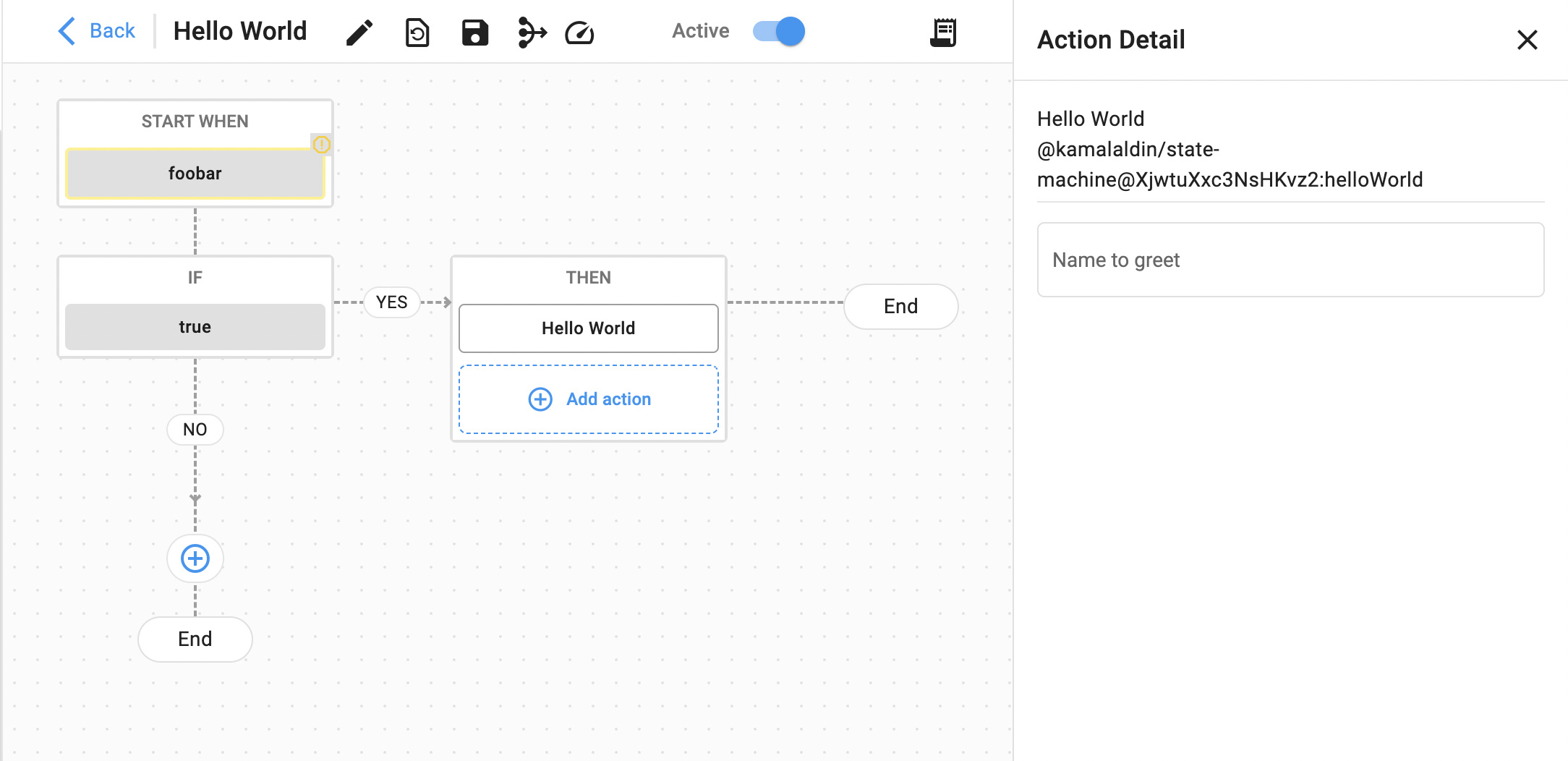
Some actions may expose configurations, while others are less configurable. As an app developer, you are free to choose the level of customization exposed to your actions’ functionality. For example, in a sample Hello World action, you may want to allow an input configuration of “name”, such that the action greets with a personal name.
Action configurations are passed to the running action on the config argument, alongside runtime context such as orgSlug, taskId, and processId.
Defining a Workflow in app.yml
A workflow can be declared directly in your app's app.yml instead of (or in addition to) being created in the admin UI. Each workflow is one entry under the top-level workflows: key.
workflows:
  onItemStatusChange:
    identifier: onItemStatusChange
    name: Handle Item Status Changes
    triggerKey: item|update
    isActive: true
    public: true
    parallelWorkerCount: 5
    workflowDefinition:
      paths:
        - conditional: '{propertyDiffs.status.propertyName} != null'
          actionDefinitionConfigs:
            - action: handleStatusChange
              name: Handle Status Change
Workflow fields
| Field | Type | Description |
|---|---|---|
identifier |
string | Stable key used for cross-org migration. Conventionally matches the YAML key. |
name |
string | Display name shown in the admin UI. |
triggerKey |
string | What fires this workflow. See Trigger keys. |
isActive |
boolean | When false, the workflow is registered but does not fire. |
public |
boolean | When true, other apps installed in the same org can trigger this workflow (e.g. by emitting an event that matches its triggerKey). When false (default), only the app that defines the workflow can fire it. Use public: true when the workflow is part of an app you publish to the marketplace and other apps need to extend it. |
parallelWorkerCount |
number | Maximum action workers run concurrently for this workflow. Default 5; max 30. |
messageGroupId |
string | Static group ID — all events sharing this ID run serially. Use when downstream writes must not collide. |
messageGroup |
string | Required companion to dynamicMessageGroupId. The static "bucket" name that scopes the templated group IDs; should be unique to the group of workflows being synced together. |
dynamicMessageGroupId |
string | Templated group ID computed per event (e.g. 'sync-{newData.itemFamilyId}'). Different IDs parallelise; same IDs serialise. Must be paired with messageGroup and a parallelWorkerCount > 1. |
workflowDefinition |
object | The runtime body — one or more paths, each with its own conditional and ordered action list. |
workflowDefinition.paths[]
Each path has a conditional (see Conditional syntax) and an ordered actionDefinitionConfigs list of actions to run when the conditional passes.
workflowDefinition:
  paths:
    - conditional: '{newData.roles}.includes("family")'
      actionDefinitionConfigs:
        - action: syncFamilyData
          name: Sync Family Data
    - conditional: '{newData.roles}.includes("option")'
      actionDefinitionConfigs:
        - action: syncOptionData
          name: Sync Option Data
The cascading-conditional rule still applies: when multiple paths are listed, only the first passing path runs.
Action chains
A single path may run multiple actions in order:
workflowDefinition:
  paths:
    - conditional: 'true'
      actionDefinitionConfigs:
        - action: validateItem
          name: Validate Item
        - action: enrichData
          name: Enrich Data
        - action: notifyTeam
          name: Notify Team
Trigger keys
The standard form is {entityType}|{action}.
| Entity type | Triggers |
|---|---|
item |
item\|create, item\|update, item\|delete |
project-item |
project-item\|create, project-item\|update, project-item\|delete |
assortment |
assortment\|publish |
assortment-item |
assortment-item\|create, assortment-item\|update, assortment-item\|delete |
plan-placeholder |
plan-placeholder\|create, plan-placeholder\|update, plan-placeholder\|delete |
custom-entity |
custom-entity\|create, custom-entity\|update, custom-entity\|delete |
comment |
comment\|create, comment\|update |
content |
content\|create, content\|update |
The list above covers the common entity types, but it isn't fixed — any entity implementing the EventWorkflowManaged interface fires create / update / delete events. If you're adding workflows for a new entity type, check the entity's definition for EventWorkflowManaged to confirm it emits events.
Manual
triggerKey: manual declares a workflow that is not event-driven — it must be kicked off explicitly (a scheduled job, an admin button, or another workflow invoking it). Useful for batch loads, archival jobs, and on-demand tasks.
workflows:
  loadFtpDataDaily:
    identifier: loadFtpDataDaily
    name: Load FTP data daily
    triggerKey: manual
    isActive: true
    public: true
    parallelWorkerCount: 3
    workflowDefinition:
      paths:
        - conditional: 'true'
          actionDefinitionConfigs:
            - action: ftpLoad
              name: Load FTP Data
Custom App Event
A workflow can react to events raised by another app (or its own app). The trigger key takes the form @{publisherOrgSlug}/{appName}:{EventName}, where {EventName} is whatever string the publishing app produces for the event.
{EventName} is configured by the publishing app
The {EventName} portion is not a fixed convention. It is determined by the publishing app's eventWorkflowTriggerKeyMapping in its own app.yml, which parses fields off the event payload into a string. Different connector apps use different templates:
- The Bamboo Rose connector uses
{objectclass}-{action} - The FlexPLM connector uses
{originSystemType}-{objectClass} - Most other VibeIQ apps use
{details.eventType}|{actionType}
To wire a workflow to a custom event, check the publishing app's app.yml for its eventWorkflowTriggerKeyMapping template, then build your triggerKey to match what that template will resolve to for the payload you care about.
# A custom event raised by another VibeIQ app
triggerKey: '@vibeiq/image-loader:ImageAssignmentComplete'

# Compound custom event from a connector using `{details.eventType}|{actionType}`
triggerKey: '@example.com/mk-sftp-integration:load|loadCSVData'
Declared custom trigger keys
A custom trigger key is useful when a workflow shouldn't fire on a built-in CRUD event but on a domain-specific action you invoke explicitly — e.g. "copy down to linked items" after an item update, or "rebuild forecast" after a manual data refresh. Declare the key in a top-level triggers: section in app.yml so the platform recognises it, then reference the same key from the workflow.
triggers:
  CopyDownToLinkedItems:
    key: item|linked-copy-down
    name: Trigger copy down to linked item copies
    description: Triggers a workflow to copy down item updates to linked item copies.

workflows:
  CopyDownToLinkedItemsWorkflow:
    name: Copy down to linked item copies
    triggerKey: item|linked-copy-down
    isActive: true
    public: true
    workflowDefinition:
      paths:
        - conditional: 'true'
          actionDefinitionConfigs:
            - action: copyDownToLinkedItems
              name: Copy down
Firing a custom trigger from code
To fire a declared custom trigger from inside an action (or any other authenticated SDK context), create an external-event entity. The payload fields are mapped to a trigger key through the app's eventWorkflowTriggerKeyMapping template — with the default {details.eventType}|{actionType} template, this:
await new Entities().create({
  entityName: 'external-event',
  object: {
    details: { eventType: 'item' },
    actionType: 'linked-copy-down',
    // ...any payload fields your workflow's conditionals or actions need
  },
});
…resolves to a trigger key of item|linked-copy-down and fires every active workflow declared with that key. The object body becomes the event argument passed to each action in the workflow.
Conditional syntax
A path's conditional is a string expression evaluated against the event payload. Wrap event data in { ... } to interpolate.
Available expression inputs
{newData.<slug>}— the entity's current state after the change.{oldData.<slug>}— the entity's state before the change (absent on creates).{propertyDiffs.<slug>.{propertyName,oldValue,newValue}}— keyed map of changed properties.{changeObjects}— bulk-change variant: an array of{ id, changes }objects, one per affected entity. Used by workflows that propagate edits across many linked records.
Common patterns
# Always run
conditional: 'true'

# Role-gated
conditional: '{newData.roles}.includes("family")'
conditional: '{newData.roles}.includes("option")'

# A specific property changed
conditional: '{propertyDiffs.status.propertyName} != null'

# Old vs new comparison
conditional: '{newData.status} !== {oldData.status}'

# New value matches
conditional: '{newData.status} === "approved"'

# Combine with AND / OR
conditional: '{newData.status} === "approved" && {newData.roles}.includes("family")'
conditional: '{newData.status} === "approved" || {newData.status} === "pending"'
Bulk diffs with changeObjects
Workflows that propagate edits across linked items get a changeObjects array with one entry per affected entity. Use it to check whether any of a watched property set changed:
conditional: >-
  {changeObjects}.some(obj =>
    ["sizeGroup","merchDivisionCode","brand","primaryViewableId"].some(prop =>
      Object.keys(obj.changes).includes(prop)))
Concurrency and message grouping
parallelWorkerCount, messageGroupId, dynamicMessageGroupId, and messageGroup together determine how many runs of the workflow execute at once and how the framework batches them. Tasks within a process always run sequentially; these fields control how separate processes spawned from the same template are batched onto the FIFO queue.
| Field | Purpose |
|---|---|
parallelWorkerCount |
Maximum concurrent processes for this template (or for this messageGroup). Default 5; max 30. Set to 1 for full serialisation. |
messageGroupId |
Static FIFO group. Every event lands in the same group → strict serialisation, regardless of parallelWorkerCount. |
dynamicMessageGroupId |
Templated FIFO group computed per event (e.g. 'sync-{newData.itemFamilyId}'). Different resolved IDs run in parallel; same IDs serialise. Requires messageGroup. |
messageGroup |
The static bucket name used together with dynamicMessageGroupId. Should be unique to the set of workflows being synced together — workflows that share a messageGroup will share parallelism budget. |
Static serialisation
All events for the workflow run strictly one-at-a-time:
workflows:
  copyDownToLinkedItemsWorkflow:
    triggerKey: item|linked-copy-down
    messageGroupId: copyDownToLinkedItems
    parallelWorkerCount: 1
Dynamic grouping (parallel across groups, serial within)
To process events for the same family in order while still running many families at once, set dynamicMessageGroupId and messageGroup and parallelWorkerCount > 1:
workflows:
  propagateRegionalForecasts:
    triggerKey: project-item|update
    parallelWorkerCount: 30
    messageGroup: propagateRegionalForecasts            # static bucket, unique to this sync group
    dynamicMessageGroupId: 'propagateRegionalForecasts-{newData.itemFamilyId}'
In this example, two events for the same itemFamilyId are guaranteed to run in arrival order; events for different families run in parallel (up to 30 at a time).
dynamicMessageGroupId requires messageGroup
dynamicMessageGroupId is parsed into a messageGroupId at runtime using the event payload, but the framework needs the static messageGroup to know which bucket those resolved IDs belong to. Without messageGroup, the dynamic ID won't be applied. Pick a messageGroup value that is unique to the group of workflows you want serialised together — if multiple templates share the same messageGroup, they share the same FIFO/parallelism budget.
parallelWorkerCount is capped at 30 per workflow. Org-level concurrency limits also apply on top of these settings. Contact your Customer Success Manager to lift them if a workflow legitimately needs more headroom.
Access grants
To let a workflow read or write entities, declare access grants on the app:
accessGrants:
  - entityType: item
    accessLevel: write
  - entityType: project-item
    accessLevel: read
  - entityType: assortment
    accessLevel: write
| Access Level | Permissions |
|---|---|
read |
Get, query |
write |
Get, query, create, update, delete |
Two different accessGrants shapes
The accessGrants here (entityType + accessLevel) controls which entities a workflow's action can read or write. This is different from the accessGrants field at the app-marketplace level (apps/getting_started.md → accessGrants), which uses orgSlug + permissions to control who can install the app. Both fields share the name; their schemas are distinct.